






























































Processing a form with Power Automate
In this exercise, we’ll configure a flow to process the responses and save them into the database you created in Chapter 13, Using Databases. The flow will utilize the form ID value you saved in the previous exercise, the When a new response is submitted trigger, and the Get response details action for the Microsoft Forms connector.
Follow these steps to configure the flow:
- Log in to the Power Automate web portal (https://make.powerautomate.com) and click Create.
- Under the Start from blank section, select Automated cloud flow.
- Enter a name for the flow (such as
Customer Data Intake) and select the When a new response is submitted Microsoft Forms trigger. - Click Create.
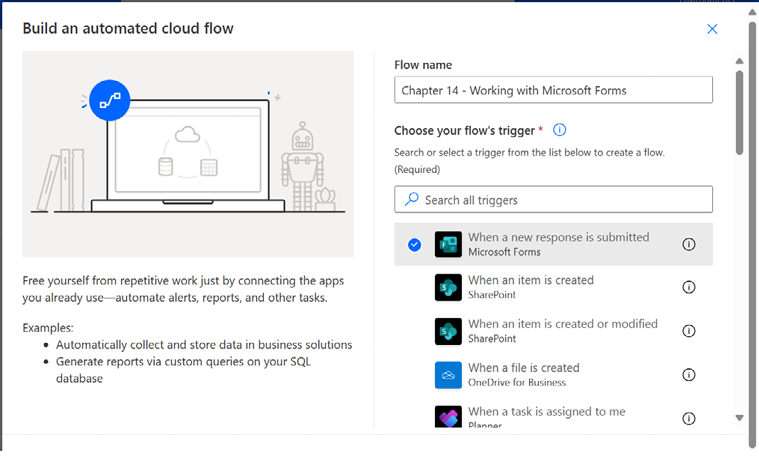
Figure 14.7 – Creating a new automated cloud flow with the Forms trigger
- In the details for the trigger, select the form if it is displayed. If the form you created is not displayed, select Add a custom item...