






























































Entering data
With your web browser open to the sample site, https://web-scraping.dev, click the login link to view the credentials for the page:
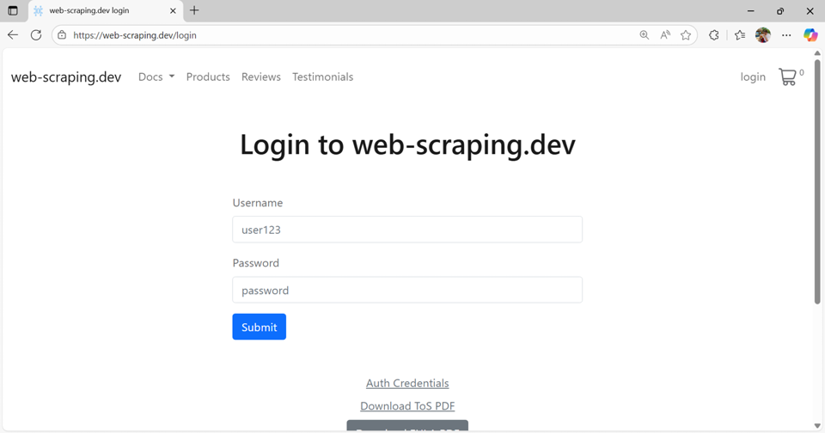
Figure 20.20 – Viewing the credentials for the sample website
In this exercise, we’ll store the credentials in variables and then log in to the site using these steps:
- With the Power Automate Desktop flow open, drag the Set variable action above the first step in the flow.
- Update the Variable name to
usernameand update the value touser123. - Click Save.
- Add another Set variable action at step 2, directly under the first Set variable action.
- Update the Variable name to
passwordand update the value topassword. - Add the Go to web page action before the Close web browser action.
- On the Go to web page action, set the URL field to
https://web-scraping.dev/login.
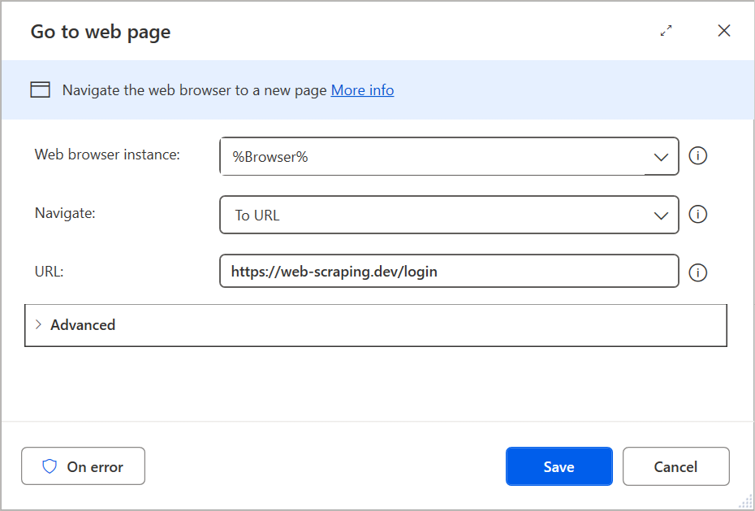
Figure 20.21 – Updating the browser URL
- Click Save.
- Add the Populate text...