






























































Taking screenshots
With Power Automate Desktop, you can take screenshots focused on either the browser session or the entire workstation’s display. Follow these steps to configure the screenshot action to save as a file with a name dynamically generated from the current date and time.
- With the Power Automate Desktop flow open, drag the Get current date and time action to the canvas between the Press button on web page and Close web browser actions. Click Save.
- From the Actions pane, drag the Convert datetime to text action to the canvas between the Get current date and time and Close web browser actions.
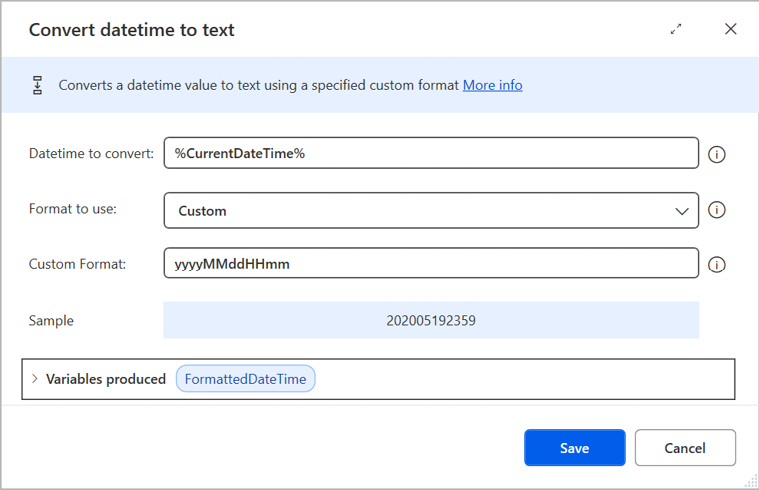
Figure 20.24 – Configuring the convert datetime to text action
- In the Datetime to convert field, add the
%CurrentDateTime%variable. - In the Format to use field, select Custom.
- In the Custom Format area, enter
yyyyMMddHHmmto configure a custom format of four-digit year, two-digit month, two-digit day, hours, and minutes...