





























































Running your app in Simulator
Simulator is downloaded and installed after you install Xcode. It provides a simulated iOS device so that you can see what your app looks like and how it behaves, without needing a physical iOS device. It can model all screen sizes and resolutions for both iPad and iPhone, so you can test your app on multiple devices easily.To run your app in Simulator, follow these steps:
Click the Destination pop-up menu to view a list of simulated devices. Choose iPhone 16e from this menu:
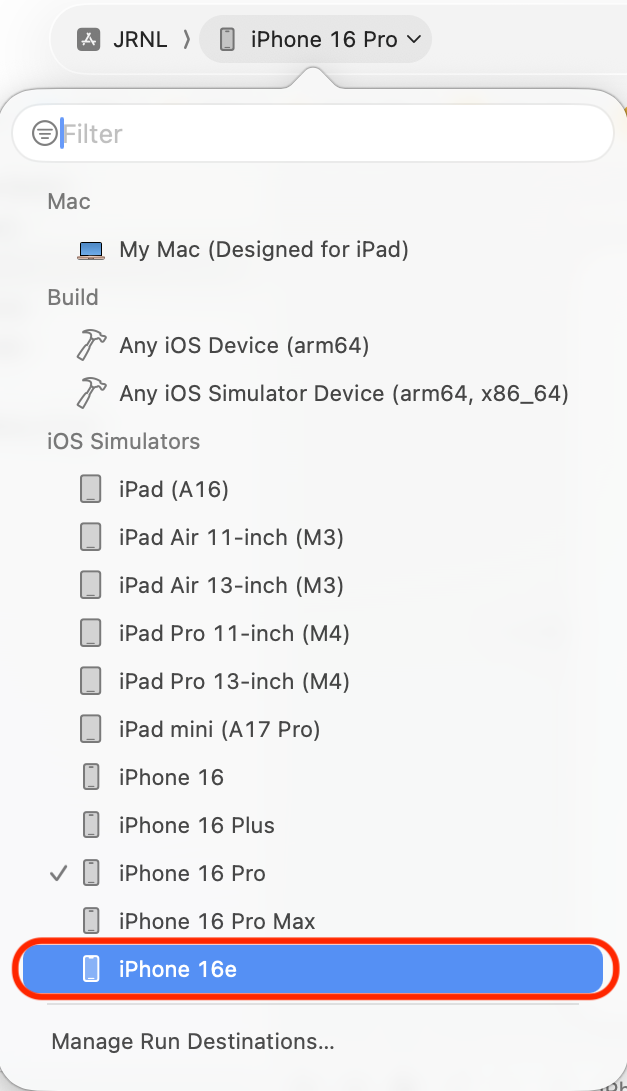
In your own projects, you can choose any simulator you like. That said, if you want to match the screenshots in this book exactly, use the iPhone 16e simulator.
- Click the Run button to install and run your app on the currently selected simulator. You can also use the Command + R keyboard shortcut.
Simulator will launch and show a representation of an iPhone 16e running your app. Your app will display a white screen...